
User Guide
This guide covers how you’ll actually interact with the Starshipit integration day to day: what happens automatically in the background, and how to use the Get Rates button on a Sales Order to quote shipping to a customer before it ships. For setup and configuration, see the Admin Guide.
The Background Sync — What Happens Automatically
Section titled “The Background Sync — What Happens Automatically”Most of the integration’s work happens without you doing anything beyond your normal Fishbowl workflow. Here’s the order things happen in:
1. You prepare the order as usual
Section titled “1. You prepare the order as usual”Pick all items for the shipment in the Pick module, then open the shipment in the Ship module and click Pack. That’s the signal the integration is waiting for — once an order is Packed (or Entered, depending on how your workflow is configured), it becomes eligible to be sent to Starshipit.
2. The order appears in Starshipit on its own
Section titled “2. The order appears in Starshipit on its own”On its regular schedule, the integration picks up the order and creates it in Starshipit — ship-to address, contact details, and item-level data included. You don’t need to do anything to make this happen; it happens in the background. The order’s Fishbowl sales order number (and customer PO number, if set) travels with it as a reference, so you can find it in Starshipit by the same number you know it by in Fishbowl.
3. You generate the label in Starshipit
Section titled “3. You generate the label in Starshipit”This is the one manual step in the shipping process itself: in Starshipit, select the order and generate the shipping label as you normally would.
4. Fishbowl updates itself once the label is generated
Section titled “4. Fishbowl updates itself once the label is generated”Once the shipment is dispatched in Starshipit, the integration brings the tracking number, package weight, and shipping cost back into Fishbowl and marks the shipment Shipped — again, with no action needed on your end. You’ll see this reflected on the Ship record’s custom fields (tracking, shipping amount, carrier) once it’s synced.
If you don’t see a shipment update in Fishbowl right away, it’s worth waiting for the next sync cycle before assuming something’s wrong — see the FAQ for what to check if it still hasn’t shown up.
If a shipment gets stuck: Flush Pending Ships
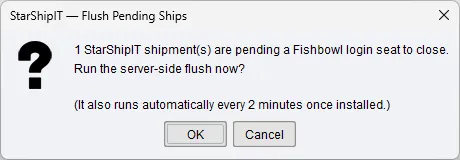
Section titled “If a shipment gets stuck: Flush Pending Ships”Occasionally a shipment can get stuck — dispatched in Starshipit, but not yet marked Shipped back in Fishbowl. If you run into this, there’s a Flush Pending Ships button in the Shipping module. Clicking it tells you how many shipments are currently stuck and offers to fix it immediately. In most cases you won’t need to use this at all — it also runs on its own automatically every couple of minutes — but it’s there if you want it resolved right away rather than waiting.
Getting a Shipping Rate Before You Ship
Section titled “Getting a Shipping Rate Before You Ship”If you want to quote shipping to a customer, or add a shipping line item to a Sales Order before it’s shipped, use the Get Rates button.
Step 1: Open the Sales Order and add items
Section titled “Step 1: Open the Sales Order and add items”Get Rates works from a Sales Order that already has products added to it — the rates it fetches are based on those items’ weight and size.
Step 2: Click Get Rates
Section titled “Step 2: Click Get Rates”From the Sales Order, click the Get Rates button (Sales Order toolbar). A window opens showing the recommended package size and total weight for the order.
Step 3: Confirm or adjust the package size
Section titled “Step 3: Confirm or adjust the package size”The Recommended Package Size fields (Length, Width, Height) are pre-filled based on the largest single item on the order, and Total Weight is the sum of all items’ weights. You can:
- Leave these as-is if the items will genuinely ship in a box that size, or
- Enter your own Length, Width, and Height (in centimeters, 0–1000) if the items will actually go into a different-sized box — for example, if several smaller items are being consolidated into one larger carton.
- Click Request Rates once the package size is right for this shipment.
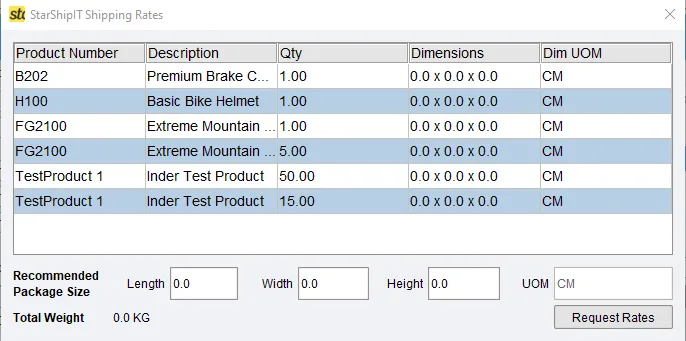
Step 4: Review the ship-to address, weight, and available rates
Section titled “Step 4: Review the ship-to address, weight, and available rates”A rates window opens showing:
- The order’s Ship To Address, for a quick sanity check before you request pricing.
- Total Weight for the shipment.
- Rate Markup, if your organization has one configured — shown as either a percentage or a flat amount added to the raw carrier rate.
- A table of available shipping services, with carrier, service name, service code, and price (with any configured markup already applied).
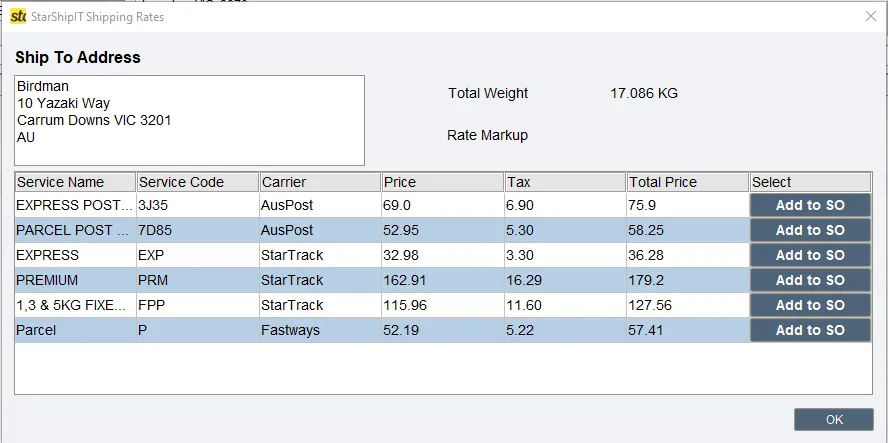
Step 5: Add a rate to the Sales Order
Section titled “Step 5: Add a rate to the Sales Order”Click Add to SO next to the service you want. This adds a shipping line item to the Sales Order using that service’s price (with markup, if configured), and records the chosen carrier and service on the order so the integration sends the correct shipping method to Starshipit later.
You can only add one shipping line item per order this way — if one already exists, you’ll see a message telling you it’s already there instead of a duplicate being added.
Support
Section titled “Support”Setup questions, access issues, or anything not covered here — contact ILC support. See the FAQ for common questions, or the Admin Guide for configuration details.