
Using Pages
Open and run CloudPages from inside Fishbowl. Pages are live HTML/JavaScript tools and reports that read Fishbowl data directly.
Open a Page
Section titled “Open a Page”Open the CloudPages module. The Available Pages list shows every Page you can access, grouped in a folder tree. Filter by folder on the left, or search by title.
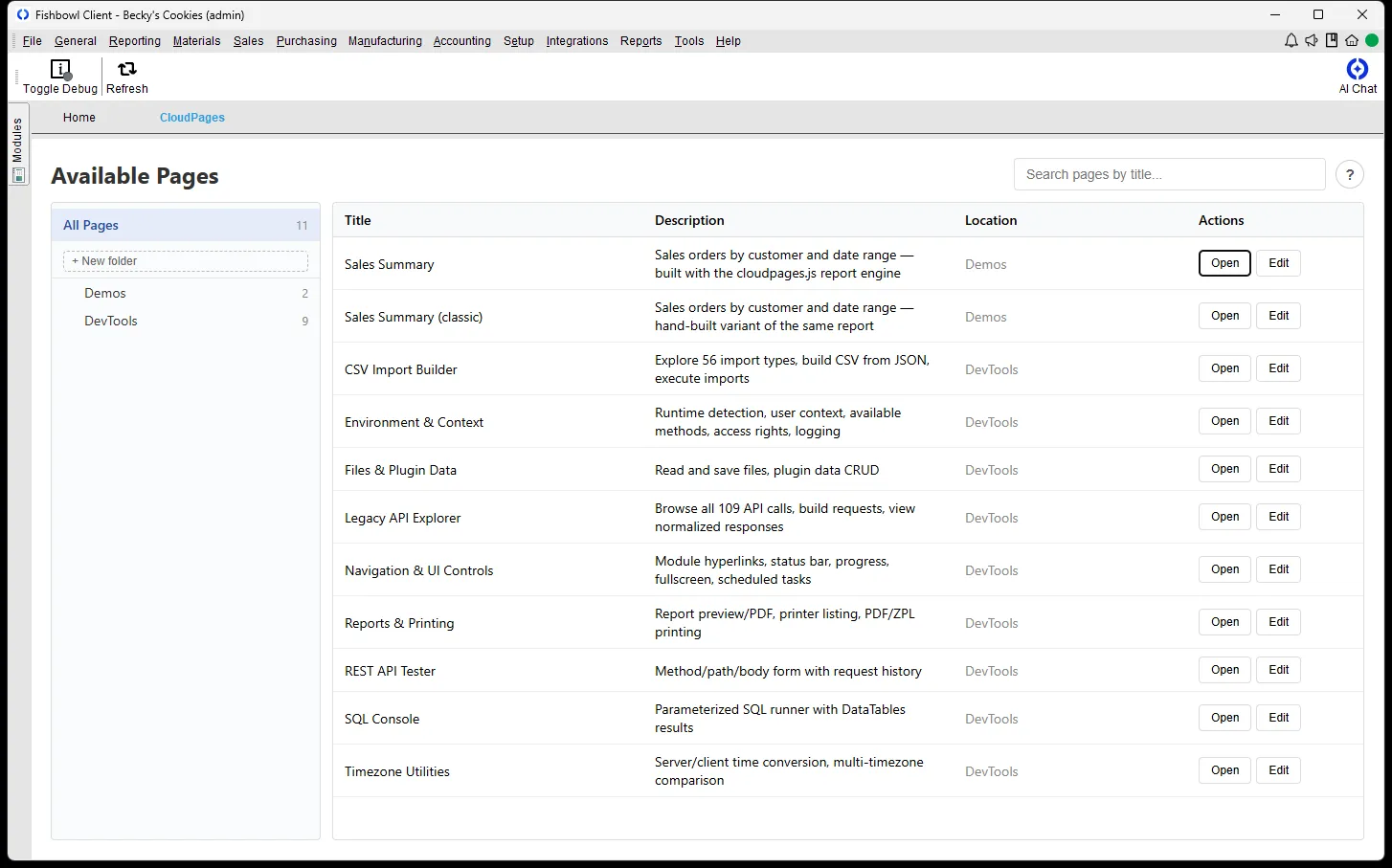
Select Open on a Page to run it in its own window. The Page window has its own toolbar — refresh, folder, and full-screen controls — above the Page.
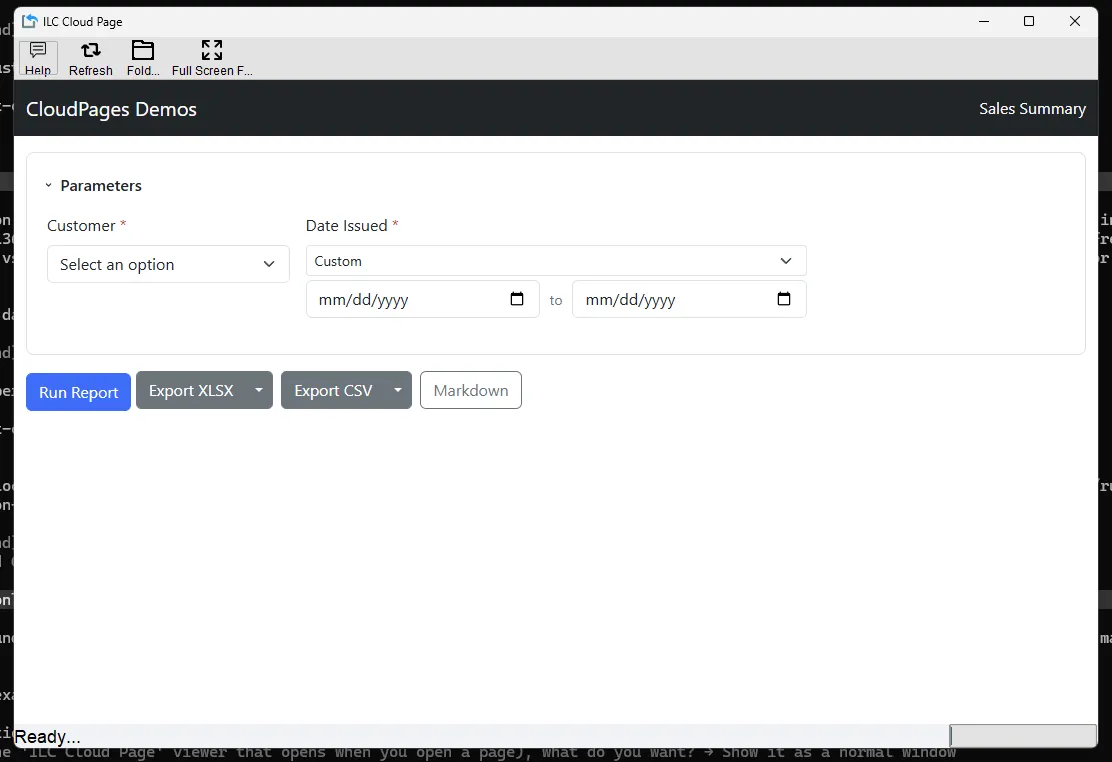
Open a Page from a module
Section titled “Open a Page from a module”A Page can attach itself to specific Fishbowl modules. When it does, it appears in that module in two ways:
- In the module’s CloudPages dropdown.
- As a toolbar button, when the Page or an administrator enables one.
Select the Page from the dropdown or its button to open it without leaving the module.

Every module carries a Pages button, which opens a menu of the Pages available in that module. A Page that enables a toolbar button also gets its own labelled button beside it — select it to open that Page directly.
Refresh a Page
Section titled “Refresh a Page”Pages update from their repository automatically — the current version loads the next time you open the Page. To reload a Page you already have open, use the refresh control in the Page window.
Reports and printing
Section titled “Reports and printing”Report Pages take parameters, run against live Fishbowl data, and show the result in a table you can sort and search. Follow the controls on the Page; the Page author documents its specific options.
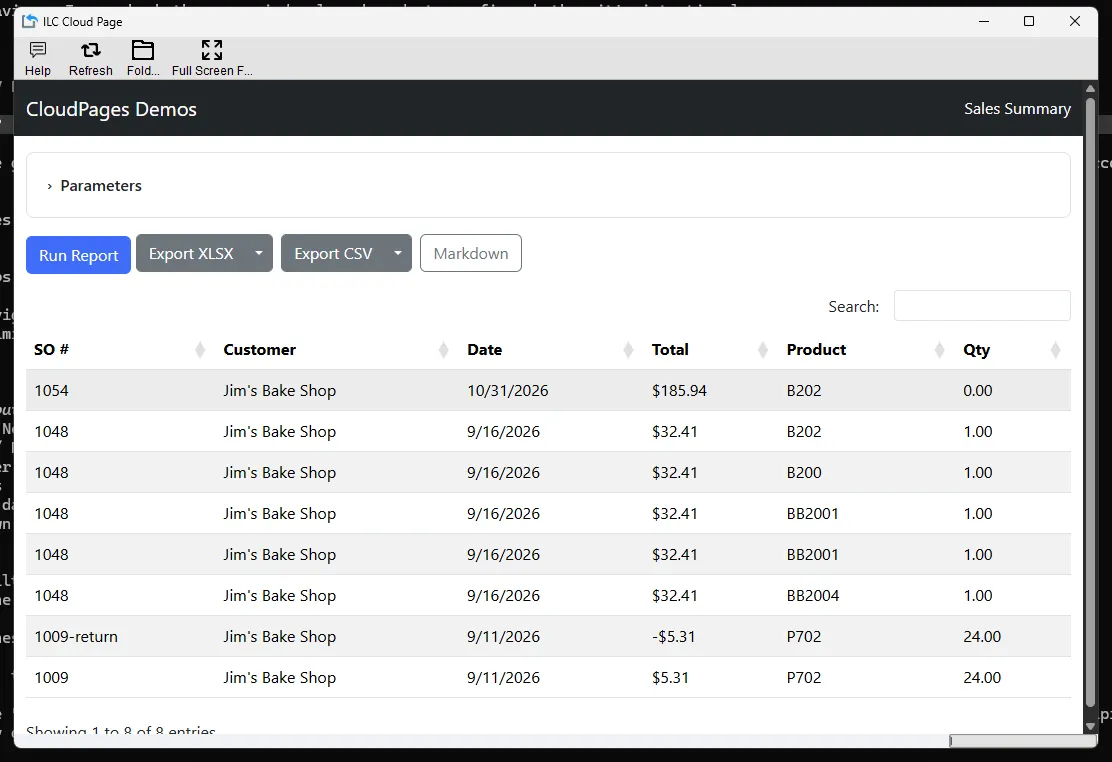
Where a Page offers them, use the export buttons to save the result — for example Export XLSX, Export CSV, or Markdown.
Related
Section titled “Related”- Getting started — build your first Page.
- Resources — tutorials and libraries.