Files
Browse, preview, and download the files the integration works on, such as the order drops it reads and the reports it writes. The screen is read-only, and shows only the folders the integration declared.
Find a file
Section titled “Find a file”- Pick a folder from the list.
- Open folders to browse, or use the breadcrumbs and ../ to go back up.
- Select Newest to jump straight to the most recent file.
Open a file
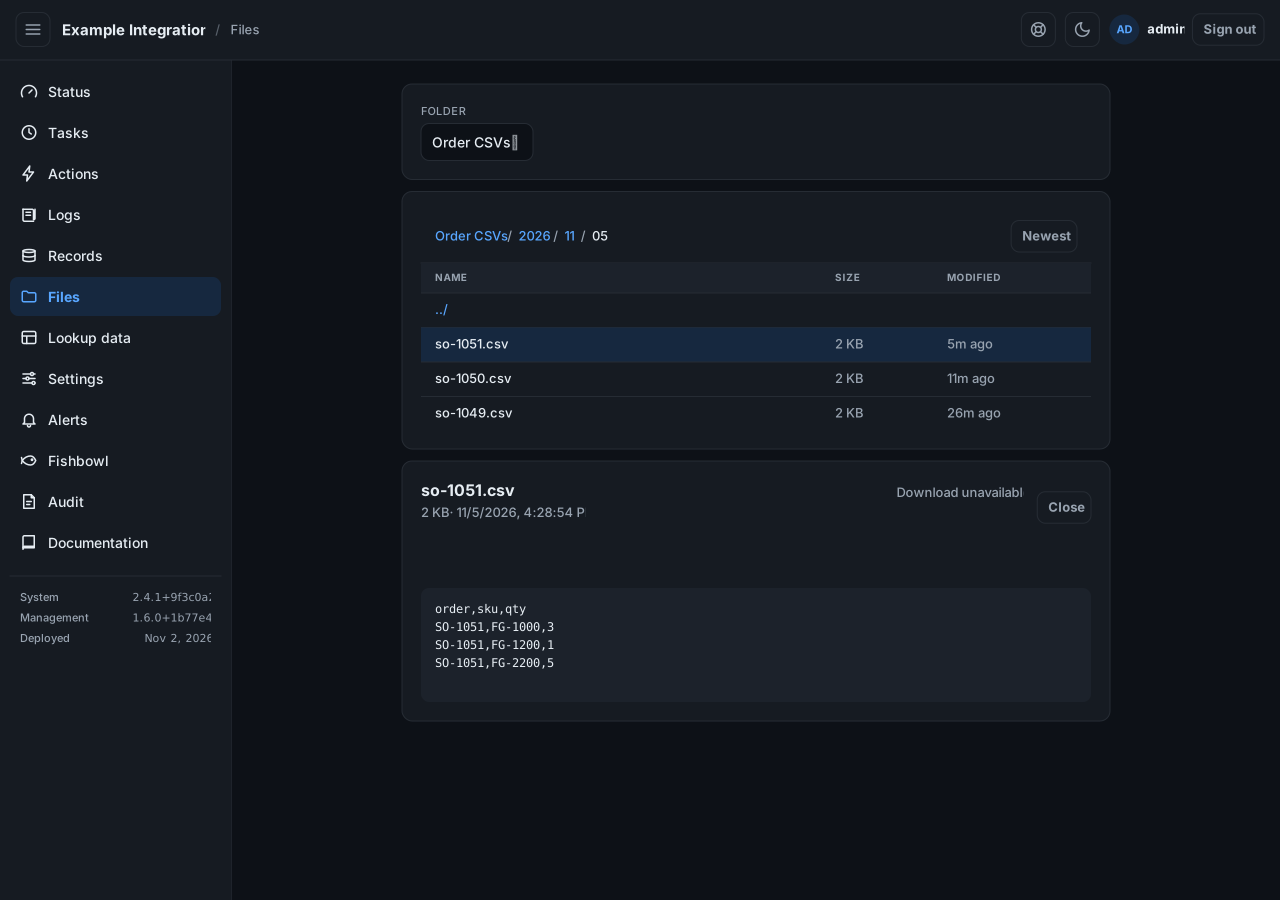
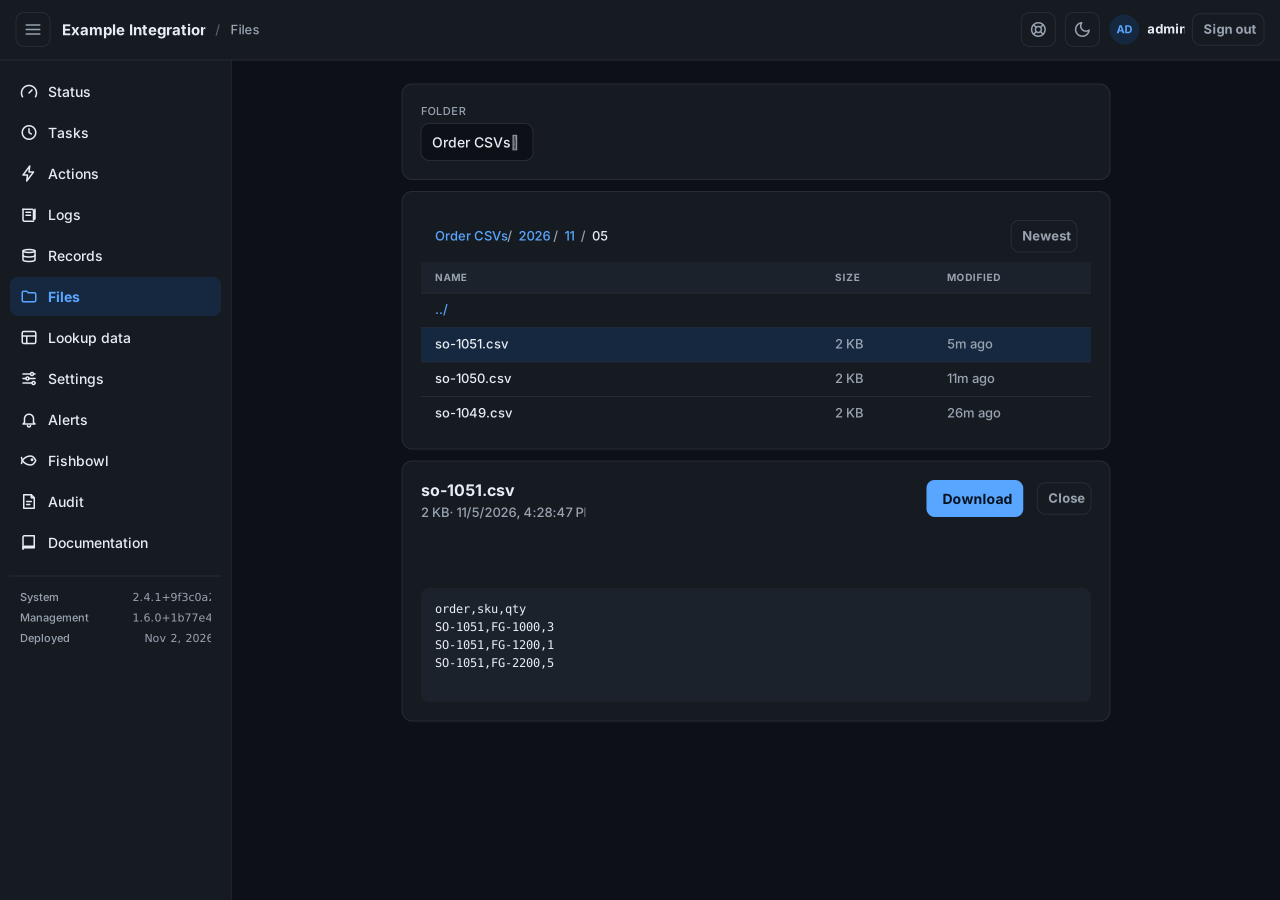
Section titled “Open a file”Select a file to see its details and a preview. A text file shows inline; a large one shows the first part. A file that is not text says so instead of previewing.
Download
Section titled “Download”Select Download. The download is a short-lived direct link to storage.
If a file shows Download unavailable instead of a button, the integration cannot sign a download link in its current setup; listing and preview still work.