
TV dashboards
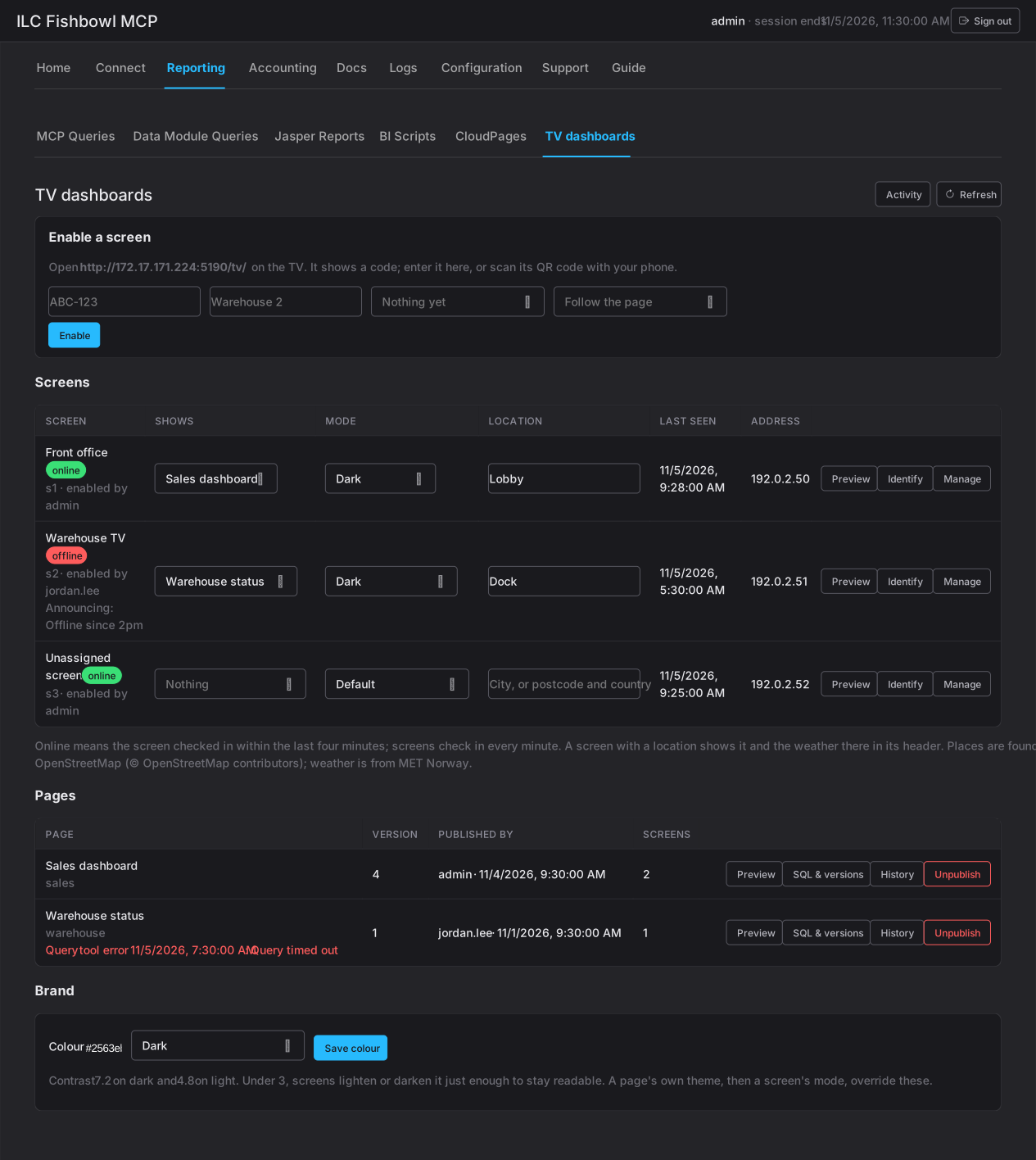
The TV dashboards panel manages the screens on your floor and the dashboards they show. An operator builds a dashboard from their AI client; here you pair the screens, assign a dashboard to each, and keep them running. It has four parts: Screens, Pages, Brand, and Activity.
Pairing a screen
Section titled “Pairing a screen”A new screen shows a pairing code (or you scan its QR code, which opens the panel with the code filled in). Enter the code to enable the screen; it then appears under Screens, ready to show a page.
Screens
Section titled “Screens”Each screen row lets you:
- Shows — assign which page it displays (or Nothing).
- Mode — Default, Dark, or Light.
- Location — a city or postcode; the screen then shows that place’s weather in its header (places via OpenStreetMap, weather from MET Norway).
- Preview — open a view-only copy of what the screen shows, live for 30 minutes.
- Identify — make the screen show its own name for 15 seconds, to tell screens apart.
- Manage — rename it, set a one-line announcement along the foot, reload it, or revoke it (which returns it to showing a pairing code).
Online means the screen checked in within the last four minutes; screens check in every minute.
The published dashboards. Each shows its version, who published it, and how many screens show it. Per page you can Preview, inspect its SQL & versions (with Roll back to re-publish an earlier version — its screens reload), see its History, or Unpublish it (its screens stay paired and show nothing until you assign another page). A page that’s failing a query shows its last error here.
A tenant-wide accent colour and default mode (dark or light) for every screen. ILC MCP checks contrast and nudges the colour just enough to stay readable where it’s too low. A page’s own theme, then a screen’s mode, override the brand.
Activity
Section titled “Activity”The TV audit trail — all of it, or filtered to one screen or one page — showing every pair, assign, publish, and revoke.
The operator’s side — building and publishing a dashboard — is in the User guide under TV Dashboards.