Alerts
Choose who is told when a run goes wrong, and how. Rules, recipients, and a history sit behind the tabs on this screen.
Write a rule
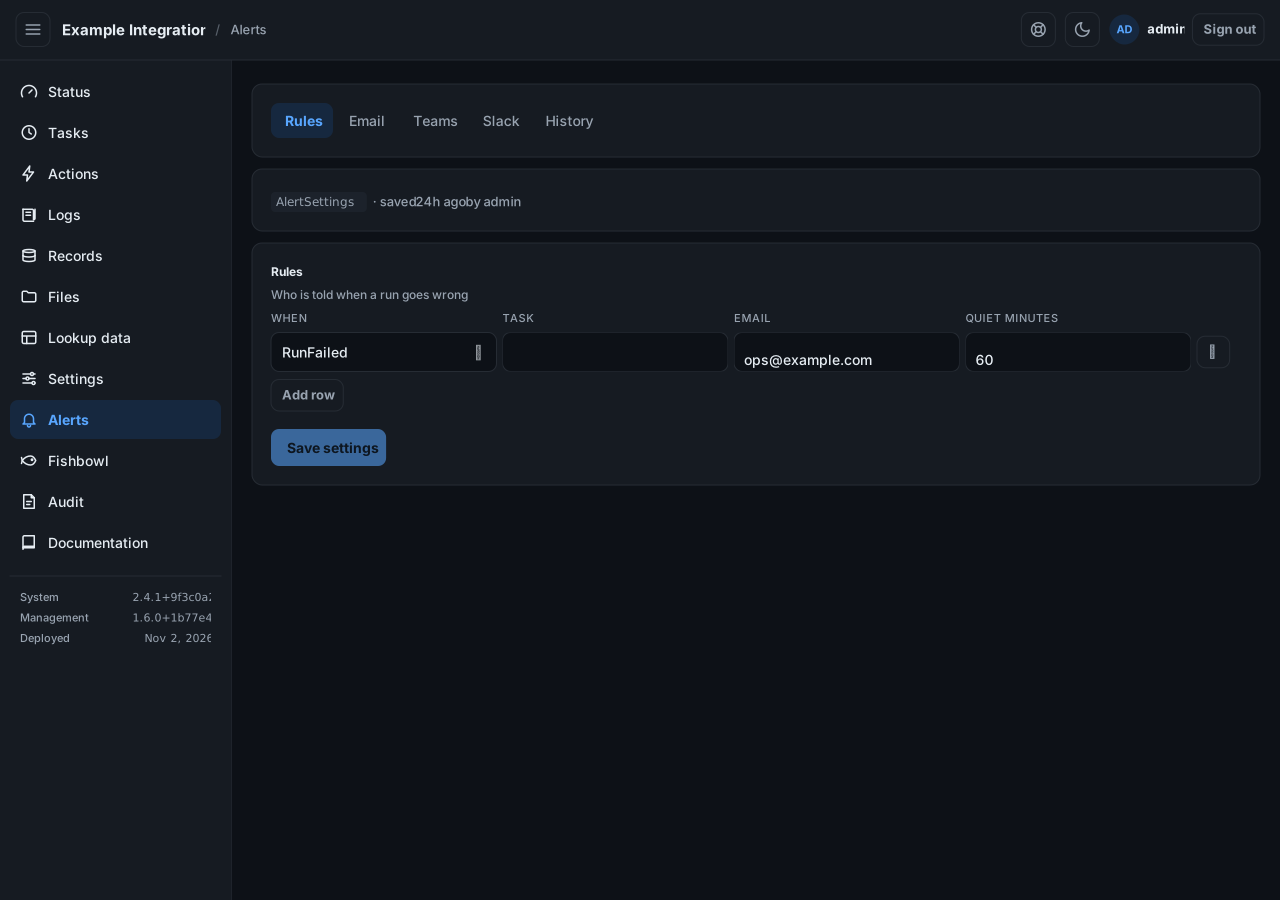
Section titled “Write a rule”On the Rules tab, each row is one rule:
| Column | Meaning |
|---|---|
| When | Run failed, an error logged, a warning logged, or specific text logged. |
| Text | For text rules: the text to match. |
| Task | One task, or every task. |
| Email / Teams / Slack | Where to send. |
| Quiet minutes | How long to stay silent about the same problem after one message. |
You are told once per problem, not once per line. A message carries up to 25 lines and says how many more there were.
Choose where messages go
Section titled “Choose where messages go”A rule sends to email, Teams, or Slack. Set each up on its own tab. Every tab has a Send test button that sends through the settings as saved, so a test proves what is saved, not what is on screen but unsaved.
On the Email tab, add the recipients.
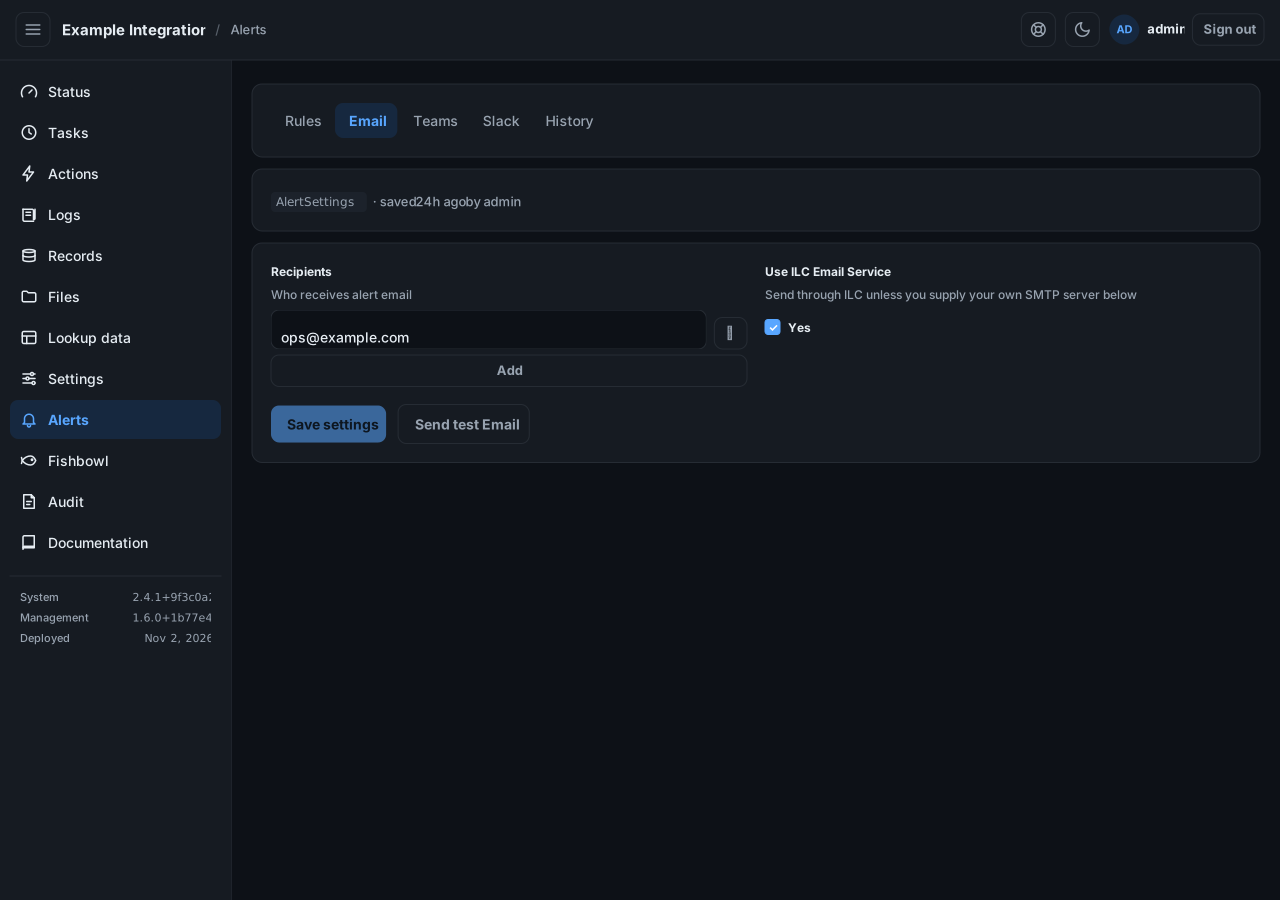
Email goes through ILC’s service unless you fill in your own SMTP server. Turn off Use ILC Email Service to reveal the SMTP fields and send through your own server instead. Keep recipients to your own company’s addresses.
On the Teams tab, paste a Teams webhook URL: a channel connector or a Power Automate (Workflows) webhook.
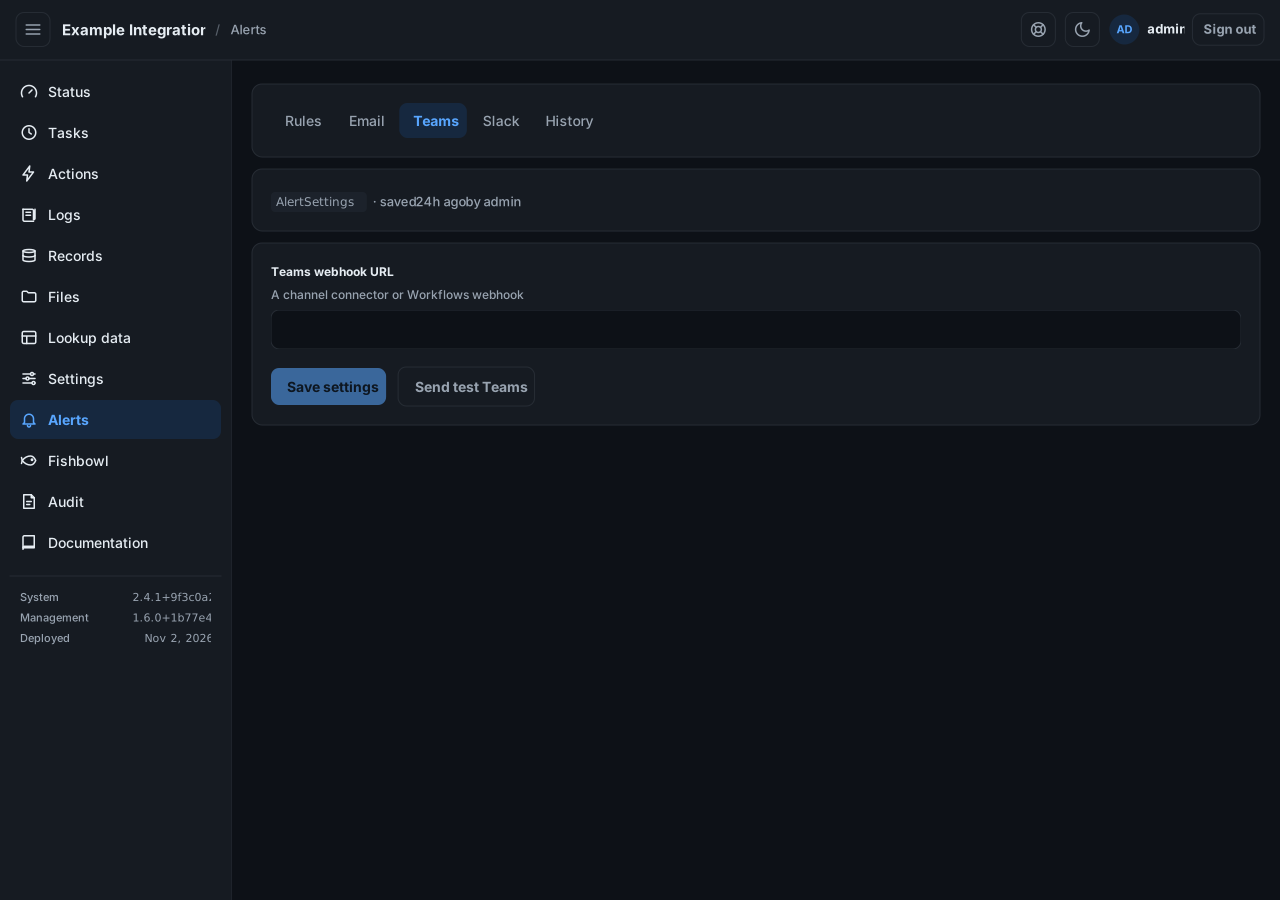
On the Slack tab, paste a Slack webhook URL.
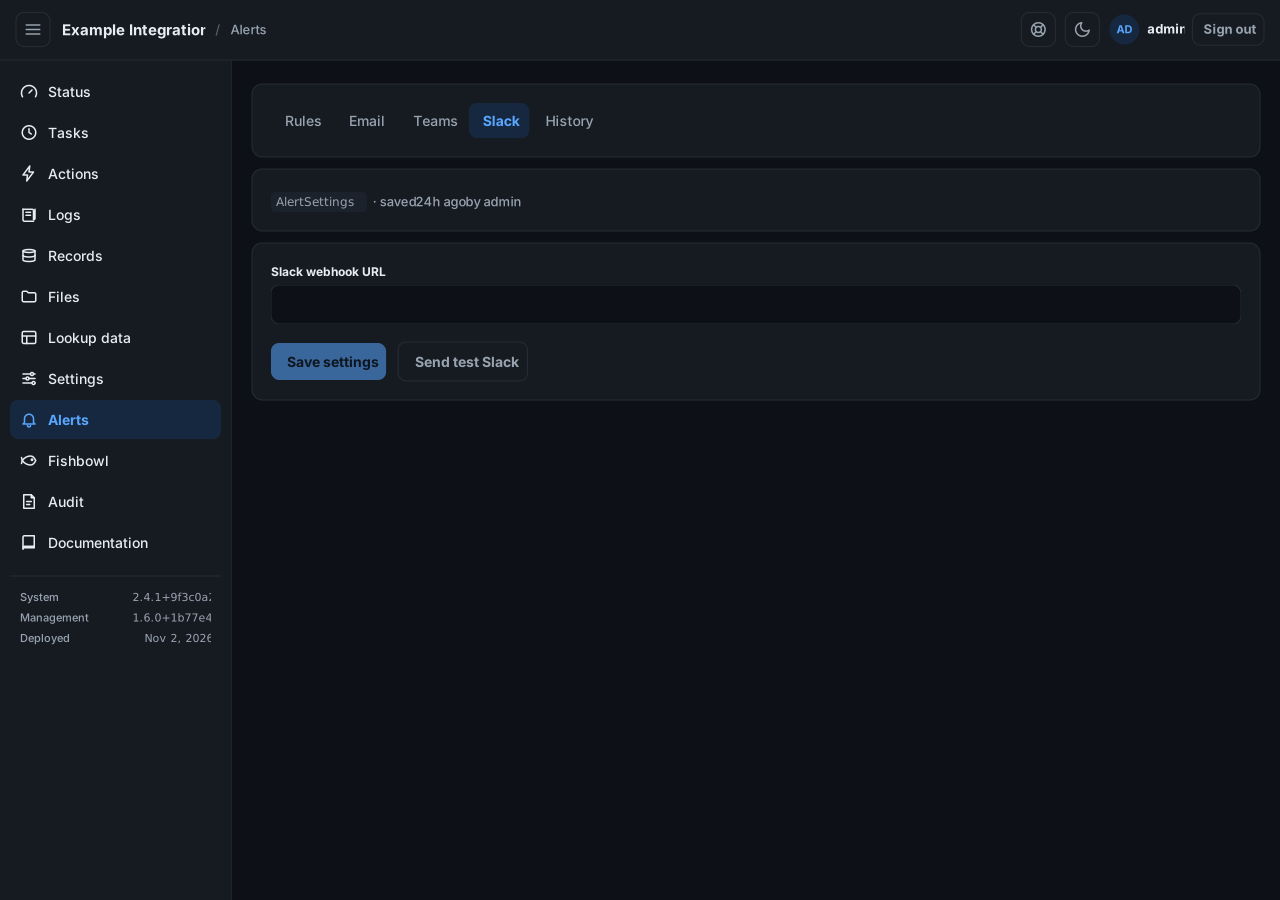
Select Save settings, then Send test to confirm the message arrives.
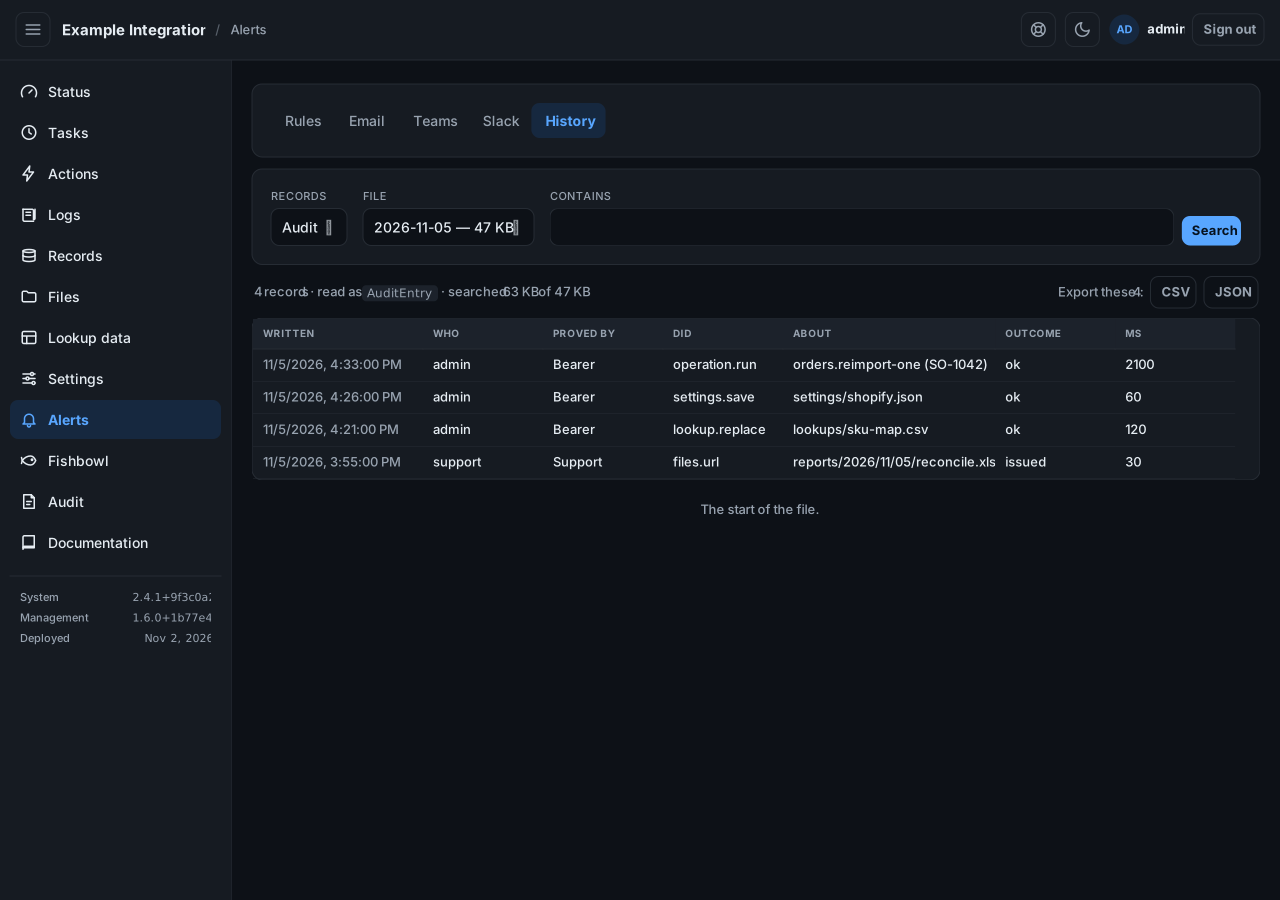
See what was sent
Section titled “See what was sent”The History tab lists every alert sent, and every one that could not be sent.