
Tasks
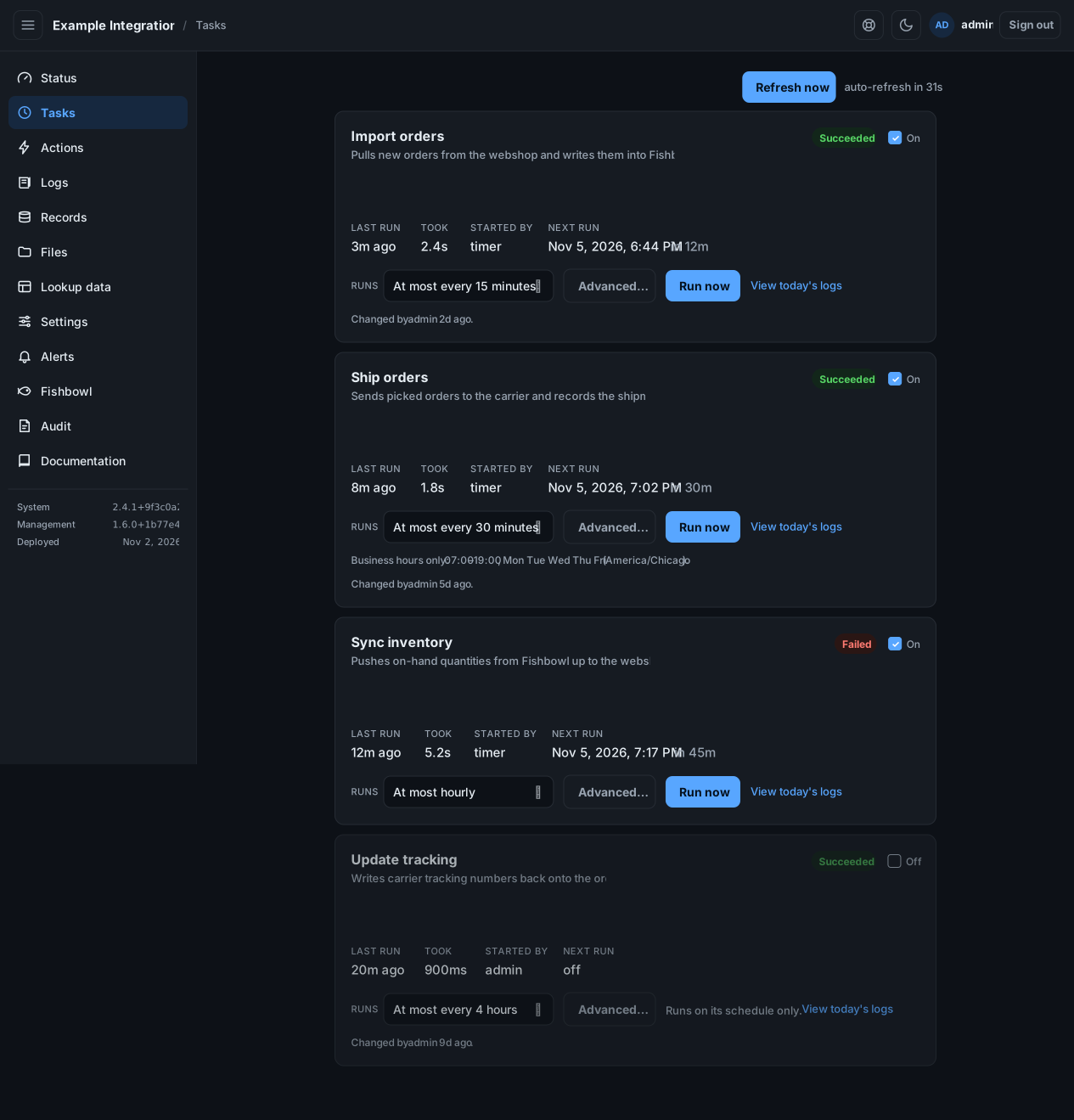
See each task’s schedule, and start a task by hand. A task is an operation that runs on a schedule.
Start a task now
Section titled “Start a task now”Select Run now on a task’s card. The run starts at once, separate from its schedule. A task that runs on its schedule only has no Run now button.
A task cannot run twice at the same time. If one is already running, your run waits or is skipped rather than colliding with it.
Turn a task on or off
Section titled “Turn a task on or off”Use the On / Off toggle. Turning a task off stops its schedule. It does not forbid the work. You can still start it by hand or from an action.
Change the schedule
Section titled “Change the schedule”Pick an interval from the Runs list, or select Advanced… for more.
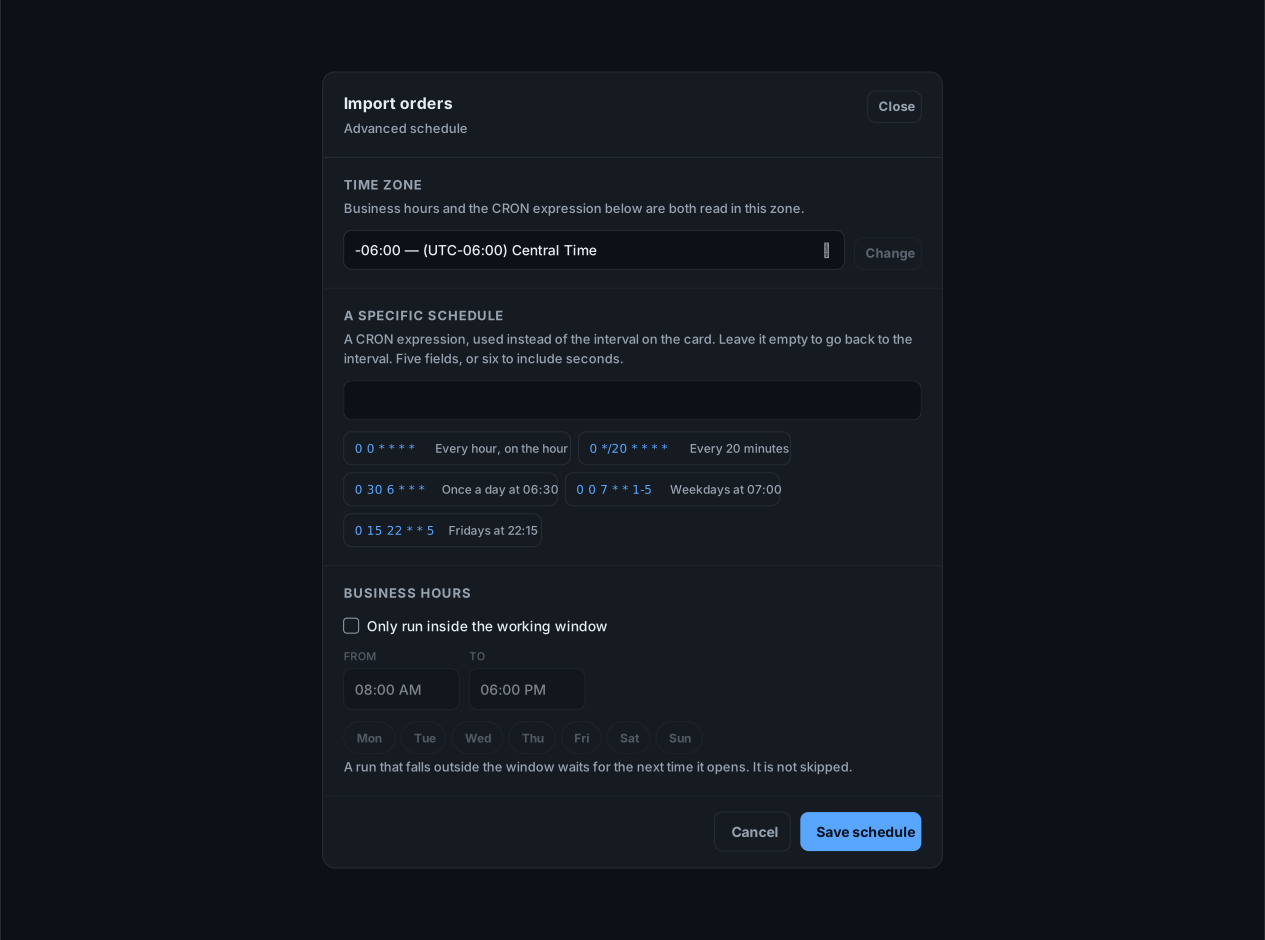
In the dialog you can:
- Set a time zone. Business hours and any CRON expression are read in it.
- Enter a CRON expression for a specific schedule, or pick an example.
- Turn on business hours and set a window and days. A run that falls outside the window waits for the next time it opens; it is not skipped.
Select Save schedule. The card shows who changed it and when.
View a task’s log
Section titled “View a task’s log”Select View today’s logs to open Logs filtered to that task.