
Logs
Read what the integration did, one day at a time.
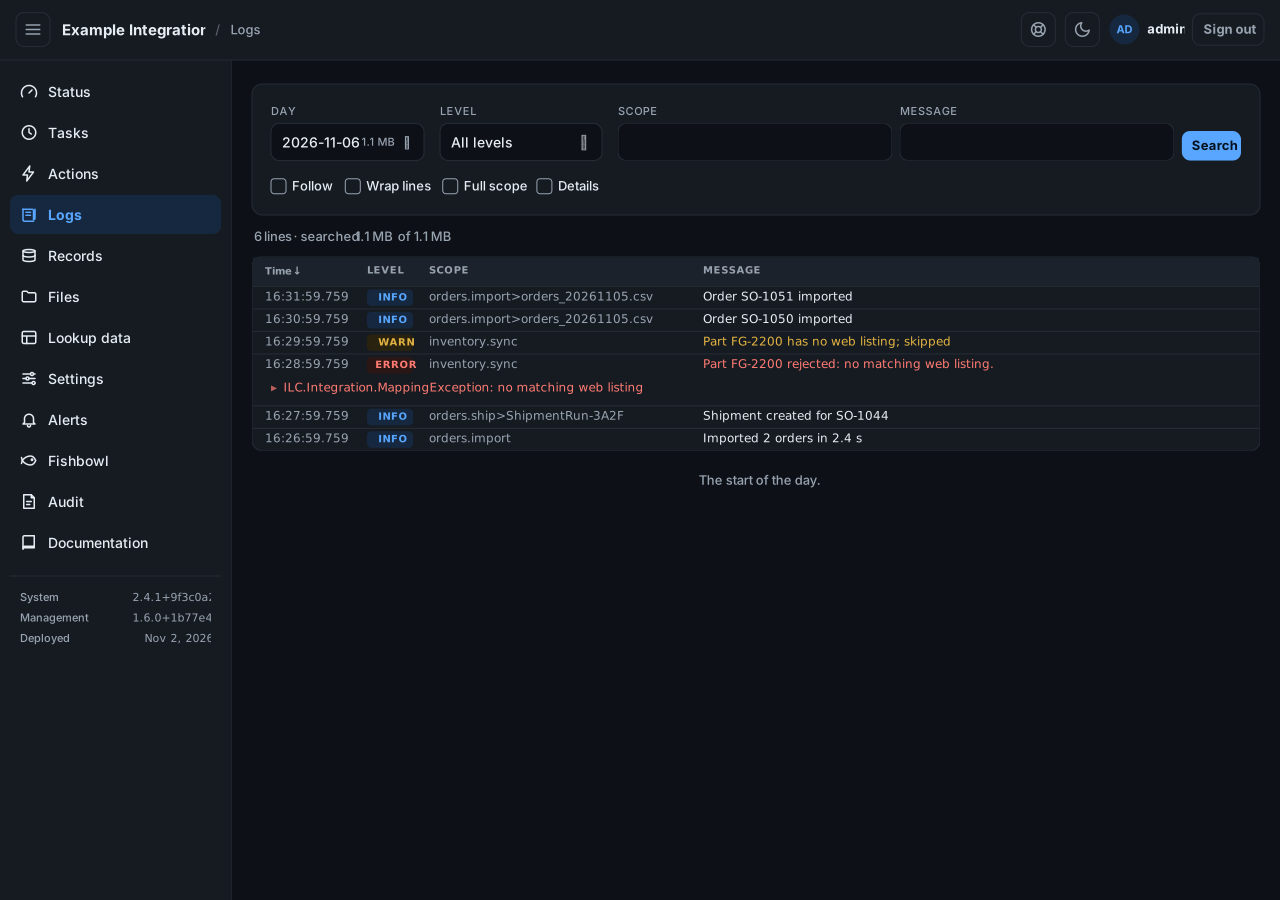
Read a day
Section titled “Read a day”Pick a day. Days with a log are marked. Each line shows its time, level, scope, and message. Levels are colored: INFO, WARN, ERROR.
Narrow it down
Section titled “Narrow it down”- Level shows only warnings and errors, for example.
- Scope shows only one task’s lines.
- Message shows only lines containing text you type.
Select Search to apply. The summary line tells you how many lines matched and how much of the day was searched.
Follow a running task
Section titled “Follow a running task”Turn on Follow to watch new lines arrive. Follow is available only for today.
See more
Section titled “See more”- Details shows a line’s properties and host.
- Full scope shows the whole scope path.
- An exception is collapsed to its first line; select it to read the whole trace.
- Load older reads further back. “The start of the day” means there is no more.
If it says no log is written
Section titled “If it says no log is written”A banner about ILC.Azure.Logger or LogContainerName means the integration is
not writing a log to read. Request support.