
Administration
Administrators control which users and groups can open each Page, how Pages appear in Fishbowl, and licensing.
Access rights
Section titled “Access rights”CloudPages controls access in two layers: module rights that gate what a user can do in the module, and per-Page grants that decide which Pages each user can open.
Module rights
Section titled “Module rights”CloudPages registers standard Fishbowl user-group rights. Grant them to a group through Fishbowl’s user and group administration, the same as any other module right.
| Right | Allows |
|---|---|
| CloudPages-View | Open the CloudPages module and run Pages. |
| CloudPages-Module Options | Open Tools → Module Options — repositories, hardware, updates. |
| CloudPages-Page Access Rights | Edit who can open a Page. |
| CloudPages-Page Metadata | Override a Page’s title, folder, modules, and toolbar button. |
| CloudPages-New Request | Submit a new-Page request. |
| CloudPages-Send Feedback | Send feedback from a Page. |
| CloudPages-Allow Debug Mode Locally | Turn on debug mode on this workstation. |
Per-Page access
Section titled “Per-Page access”Each Page carries its own list of users and groups that can open it. Set it from CloudPages → Edit → Access Rights on the Page.
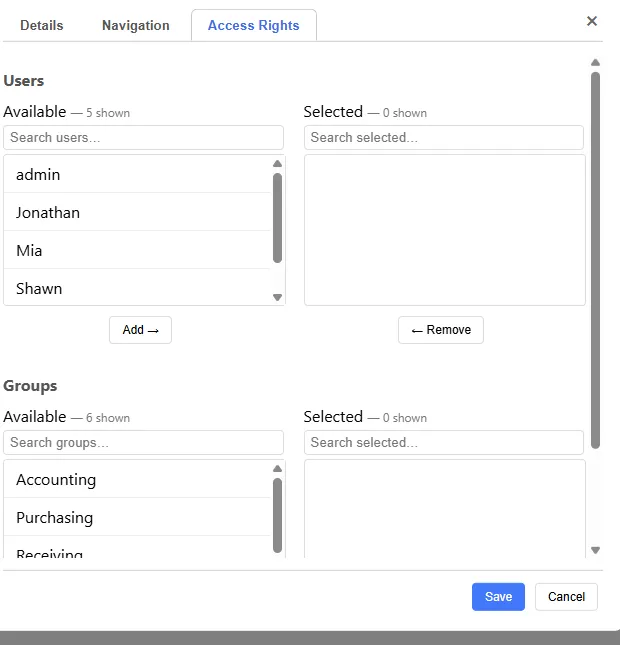
- Administrators — and any user allowed to manage page access — can open every Page.
- Everyone else can open a Page only when they, or a group they belong to, is on that Page’s list. A Page with no users or groups assigned is visible to administrators only.
The same grant controls where the Page appears in a module: its CloudPages dropdown entry and toolbar button show only for users who can open it.
Check effective access
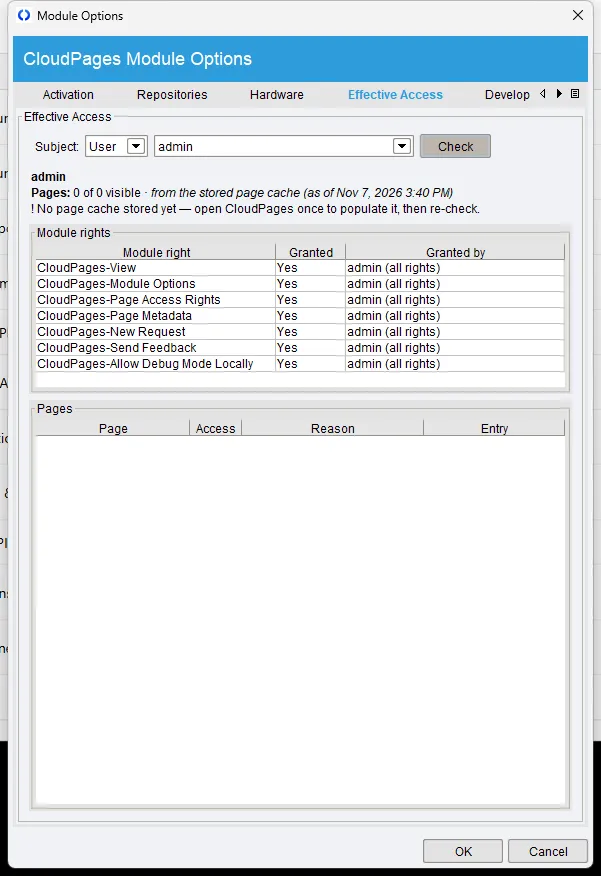
Section titled “Check effective access”To see what a specific user or group gets, use Tools → Module Options → Effective Access. Choose a subject, then select Check. It lists the module rights the subject holds and the Pages they can open — a read-only simulation that runs the same rules the module applies.
Per-install metadata overrides
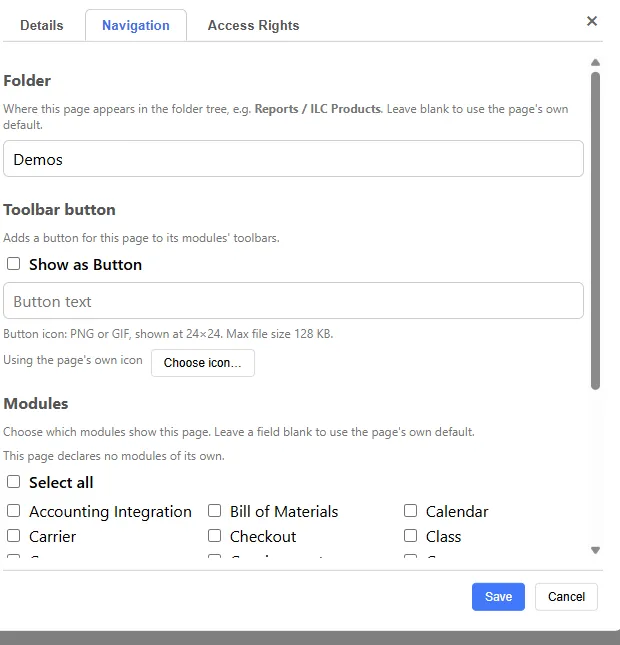
Section titled “Per-install metadata overrides”A Page declares its title, folder placement, modules, and toolbar button in its HTML (see Page metadata). Administrators with the Page Metadata access right can override these per install from CloudPages → Edit → Navigation:
| Override | Effect |
|---|---|
| Title | Replaces the Page’s declared fb_title. |
| Description | Replaces the declared description. |
| Modules | Sets which Fishbowl modules list the Page. |
| Folder | Sets placement in the Available Pages tree. |
| Toolbar button | Shows or hides the Page’s button and sets its label. |
Overrides are stored with the Page and always win over the Page’s declared defaults. Blank an override to revert to the declared value.
Licensing
Section titled “Licensing”Access is decided per repository. Cloning or pulling a repository is allowed when any of the following is true:
| Condition | Result |
|---|---|
| Fishbowl administrator | Unlimited. |
| Valid license (including trial and grace period) | Unlimited. |
| ILC-hosted repository | Auto-licensed, unlimited; does not use the free slot. |
| Otherwise | One free non-ILC repository at a time. |
An unlicensed customer can connect any number of ILC-hosted repositories plus one repository of their own. A second non-ILC repository requires a license.
The single free slot is the first non-ILC entry in the configuration. Remove it and a different non-ILC repository takes the slot.
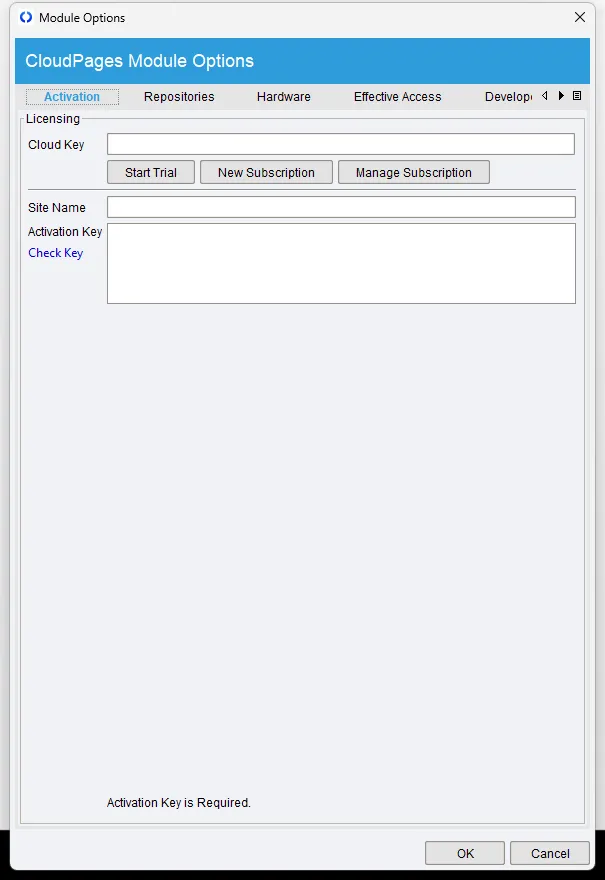
Enter a license key or start a trial from Tools → Module Options → Activation.
To license additional repositories, contact ILC through the contact page.
Related
Section titled “Related”- Configuration — add and connect repositories.
- Page metadata — what a Page declares versus what you override.