
Connecting
Before an AI client can work in Fishbowl, you connect it to ILC MCP and sign in as yourself. You do this once per client.
Every client follows the same shape: add a custom connector, paste your MCP server URL, sign in with your own Fishbowl login, and grant the scopes. Reading is always allowed; any change waits for your approval.
Pick your client
Section titled “Pick your client”- Claude — claude.ai, in the browser.
- ChatGPT — in the browser.
- Gemini — Google Gemini.
- Claude Code — the terminal.
- OpenCode — the terminal, via
opencode.json.
What you need
Section titled “What you need”| You need | Notes |
|---|---|
| Your MCP server URL | ILC hosts ILC MCP and sends you the address. It looks like https://yourmcp.example.com/mcp — use the real one ILC sends you. |
| Your Fishbowl login | You sign in as yourself. It is never a shared key, and your Fishbowl permissions carry over. |
| An account on your AI client | Claude, ChatGPT, or another supported client. |
Signing in and granting access
Section titled “Signing in and granting access”When you connect a client, you sign in with your own Fishbowl login and approve the scopes the client may use. Reading is always allowed; any change waits for your approval.
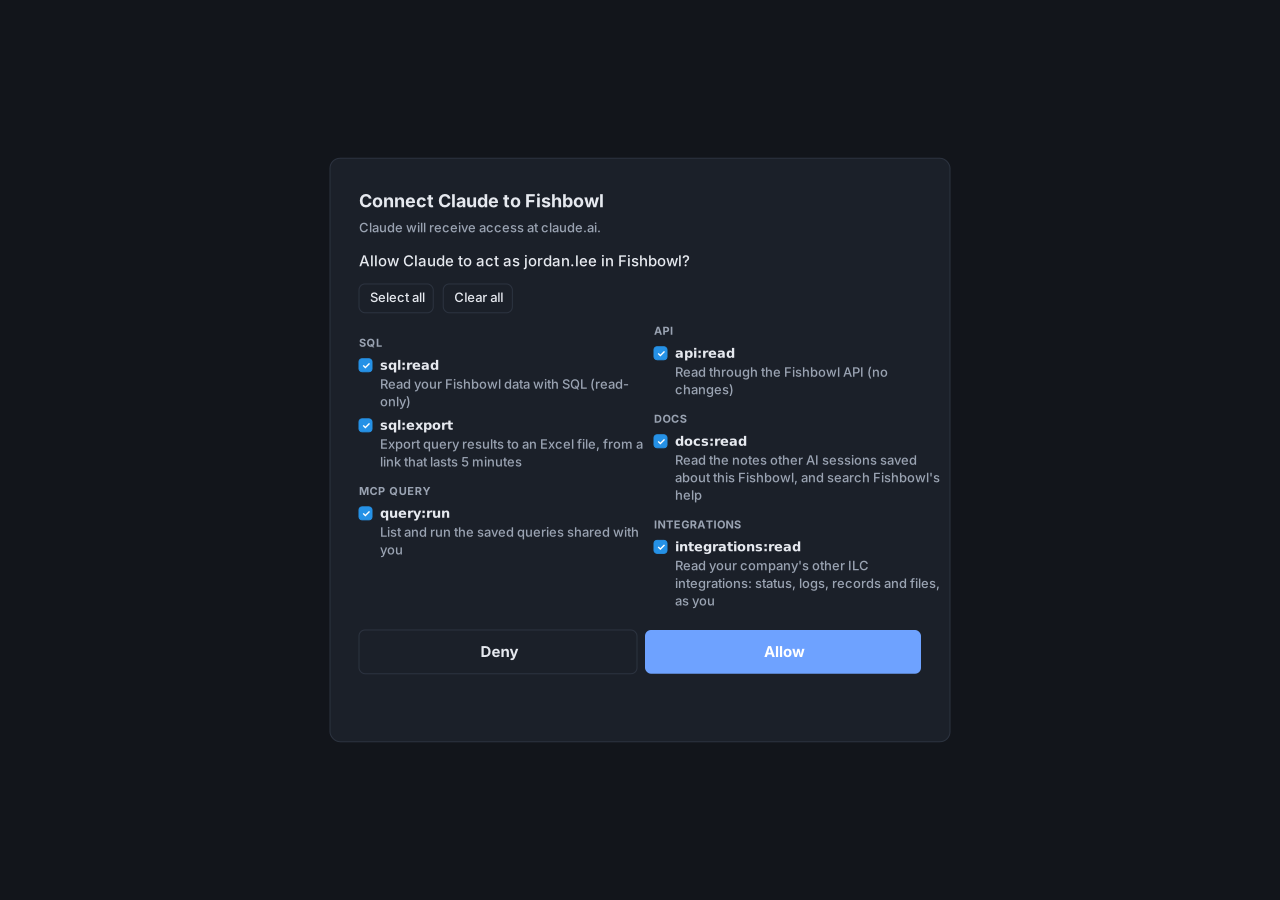
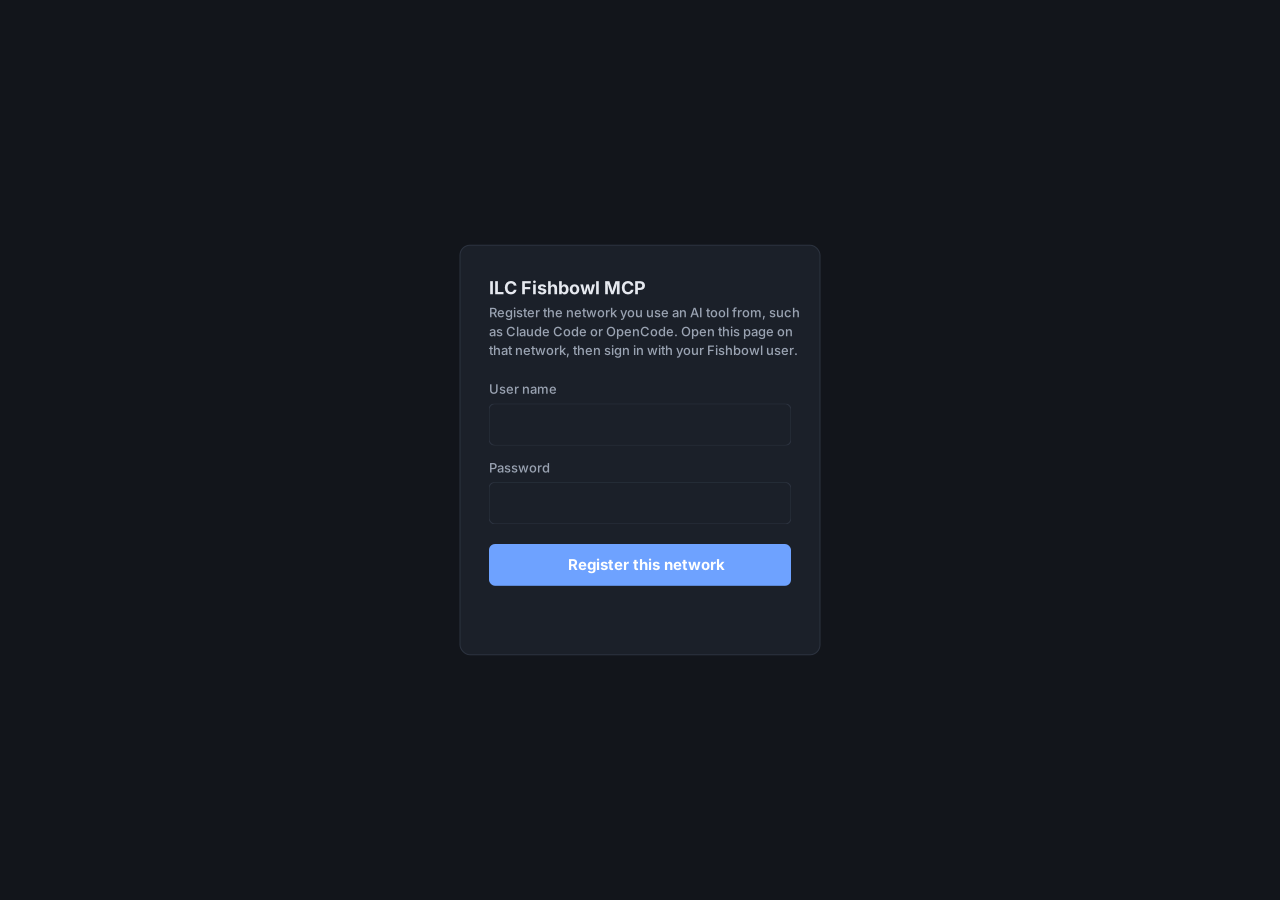
If your client runs from the terminal (Claude Code, OpenCode), you may first register the network you connect from.
Once connected, go to Using ILC MCP for the everyday ask-and-approve flow.