
ILCReports.com
Once the CloudPages plugin is installed (see Installation), connect Fishbowl to your ILCReports.com workspace to get the pages you buy or try there.
The Get it running panel in the ILCReports portal walks you through these steps and ticks each one off as it completes.
Connect to your workspace
Section titled “Connect to your workspace”Connecting links this Fishbowl to your ILCReports workspace, so your pages reach it.
- In the portal’s Get it running panel, select Show my connection code, then copy the code.
- In Fishbowl, select Reporting → ILC Reports. The Connect to ILCReports screen asks for one thing: your connection code.
- Paste the code and select Connect. Fishbowl checks the code with ILCReports, shows Connected to your workspace, and opens the ILC Reports page list.
The portal marks the step done once your Fishbowl connects.
If Fishbowl says That doesn’t look like a connection code, copy it again from the portal. Make sure you copied the whole code.
Use a new connection code
Section titled “Use a new connection code”Get a new code if you’ve lost yours, or to move the connection to a different Fishbowl:
- In the portal, select Get a new connection code and confirm. The old code stops working right away.
- In Fishbowl, open Reporting → ILC Reports. Fishbowl notices the old code was replaced and shows Reconnect to ILCReports: “This Fishbowl’s connection code was replaced. Copy the latest one from your ILCReports account and paste it below.”
- Paste the new code and select Connect.
To enter a new code at any other time, open Reporting → ILC Reports, then Tools → Module Options. The ILCReports connection screen shows the workspace you’re connected to. Paste the code and select Connect.
If Fishbowl can’t reach ILCReports when you open the module, nothing changes and your connection is kept.
Switch workspaces
Section titled “Switch workspaces”A code from the same workspace keeps everything as it was. A code from a different workspace connects this Fishbowl to that workspace instead, and the old workspace’s pages are removed from Reporting → CloudPages. The connection screen warns you about this before you paste. The new workspace’s pages then appear on their own, as described in After you connect again.
Disconnect from ILCReports
Section titled “Disconnect from ILCReports”Disconnecting makes this Fishbowl forget its connection code and workspace. Your ILCReports pages are removed from Reporting → CloudPages for everyone on this Fishbowl. Reports already installed in Fishbowl are not affected.
- Signed in to Fishbowl as admin, open Reporting → ILC Reports, then Tools → Module Options.
- Select Disconnect from ILCReports. The screen asks: “Disconnect this Fishbowl from ILCReports? Your ILCReports pages will be removed from Reporting → CloudPages until you connect again.”
- Select Yes, disconnect, or Keep connection to cancel.
The screen returns to Connect to ILCReports and confirms: “Disconnected. Your ILCReports pages were removed from Reporting → CloudPages.” To connect again, paste a connection code and select Connect.
After you connect again
Section titled “After you connect again”After you connect, whether you’re reconnecting or switching workspaces, your workspace’s pages come back to Reporting → CloudPages by themselves. You don’t need to adopt them again.
- They return a moment after you connect, not instantly.
- Only pages your workspace currently holds come back.
- If they don’t appear, adopt any page in ILC Reports. That restores the rest.
If Fishbowl can’t disconnect or finish switching workspaces, it says so. Try again. If it keeps happening, contact ILC support.
Add a page to CloudPages
Section titled “Add a page to CloudPages”- In Fishbowl, select Reporting → ILC Reports. The Catalog section lists the pages your workspace holds, marked yours, and other pages you can try, marked free trial.
- Next to your page, select Adopt. The status reads Adopted and reminds you to assign access rights.
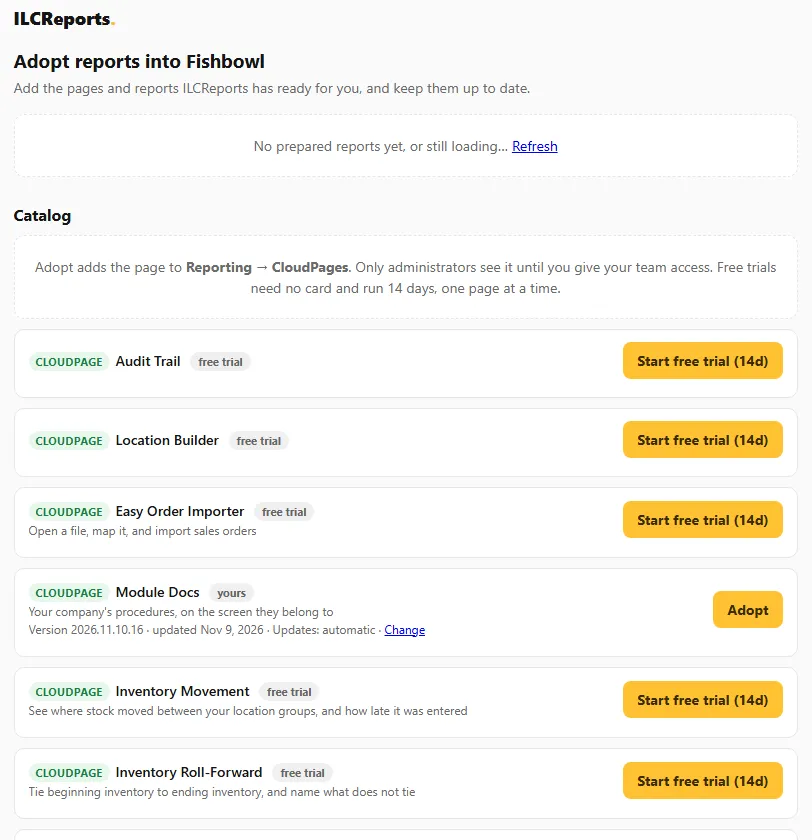
To try another page, select Start free trial (14d) next to it in the Catalog. Free trials need no card, and you can run one at a time. 3. Select Reporting → CloudPages. The page now appears in Available Pages. Open it to check it runs.
At this point only administrators can see the page. To give it to everyone else, see Give your team access.
Free trials: the 14-day trial starts the first time the page is opened in Fishbowl, not when you start the trial, connect, or adopt it. From then, the portal shows “page is running in your Fishbowl”. A trial whose page is never opened expires 30 days after you requested it, or 60 days if you’ve booked a setup call with us.
Give your team access
Section titled “Give your team access”A newly added page is visible to administrators only. Two grants open it to other users:
- Module right. In Fishbowl’s user group administration, give the group the CloudPages-View right, so its members can open the CloudPages module.
- Page access. In CloudPages, select the page, then Edit → Access Rights. Add the users or groups who should open it. To give a group every page from ILCReports at once, including pages you adopt later, use an Access Rights rule instead.
To confirm what a given user gets, use Tools → Module Options → Effective Access in CloudPages. For the full rules, see Access rights.
Page updates
Section titled “Page updates”You choose how each page you get from ILCReports is updated. Each page shows its current setting, for example:
Version 1.4.0 · updated Nov 3, 2026 · Updates: automatic · Change
You’ll find this line in two places: on each page under My pages in the portal, and next to each page in the ILC Reports page list in Fishbowl.
Select Change to choose how the page updates:
| Setting | What happens |
|---|---|
| Automatic (the default) | You get each new version as soon as ILC releases it. |
| Stay on a version | Pick one of the versions ILC has released. Nothing changes until you choose to update. |
When you pick a version, its What’s in version notes show below the list, so you can see what changed before you save. You can pick an earlier released version to go back to it.
If you’re staying on a version and a newer one is out, the line shows Version x is available and an Update now link. Update now moves the page to the latest version and keeps it there.
If ILC set a version for you, the settings say so, and you can still change it.
Related
Section titled “Related”- Installation — install and update the plugin.
- Administration — access rights and Access Rights rules.